Vehicle visibility
Every vehicle in GarageHQ has a visibility setting that controls who in your organisation can see it. Edit and delete privileges are governed separately (you still need to be the assigned owner or an org admin to make changes), so visibility only loosens or tightens the view scope.
The three modes:
| Mode | Who can see the vehicle |
|---|---|
| Visible to whole org (default) | Any member of the organisation. The right choice for shared workspaces, fleets, and most business use. |
| Visible to me + admins only | The assigned owner of the vehicle, plus organisation owners and admins. Other members don't see it at all. |
| Visible to org admins only | Only organisation owners and admins. Even the assigned owner doesn't see it if they're a regular member. |
How to change visibility
- Open the vehicle's detail page.
- Click Edit (top right).
- Scroll to the Visibility section near the bottom of the form.
- Pick one of the three radio options. Each has a short description so you can decide as you go.
- Click Save Changes.
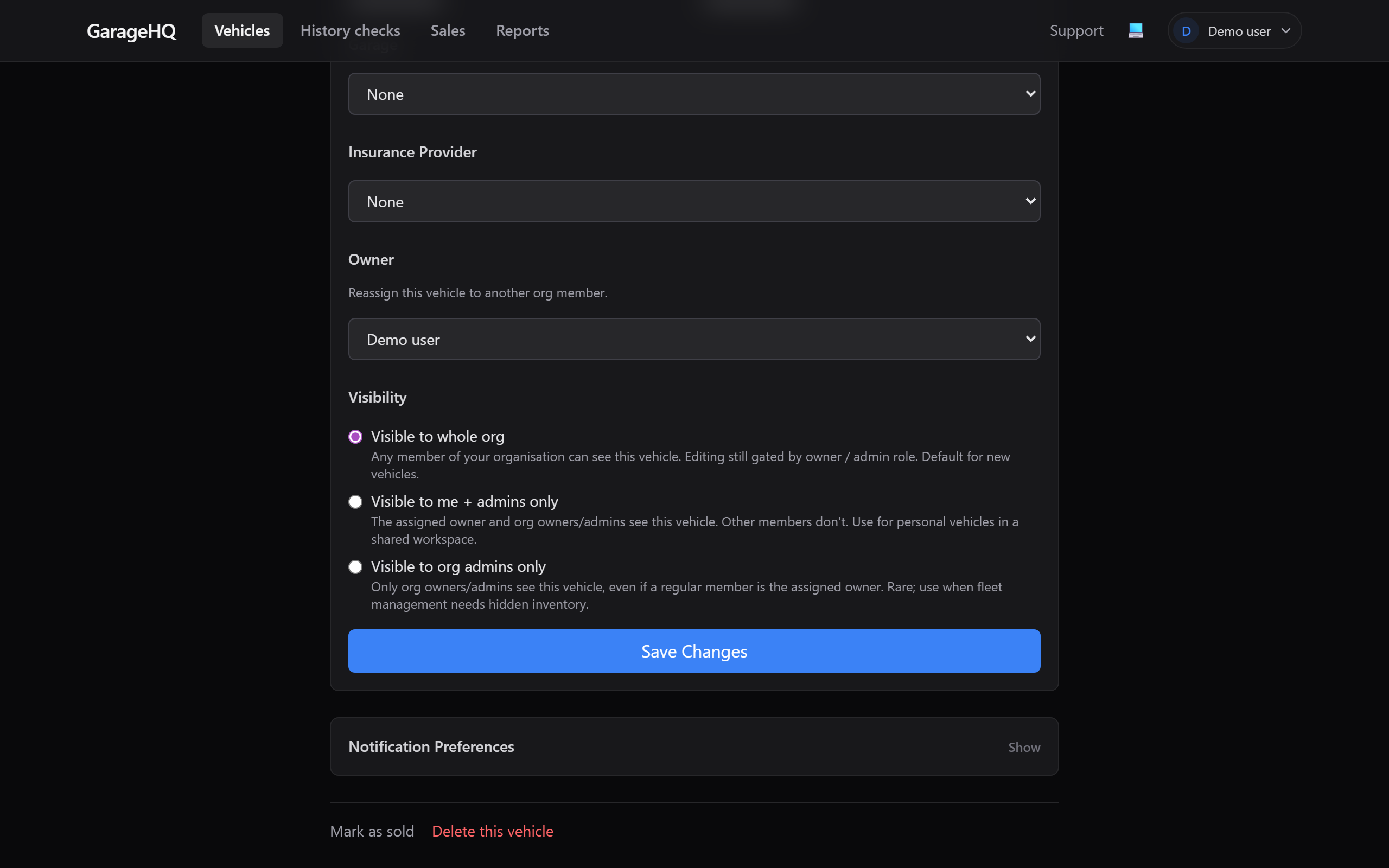
The change applies immediately. Any other org members who had the vehicle on their list will see it disappear (or appear) the next time they refresh.
Who can change visibility
| Role | Can change visibility? |
|---|---|
| Org owner | ✓ on every vehicle in the org |
| Org admin | ✓ on every vehicle in the org |
| Member who is the assigned owner of the vehicle | ✓ on their own vehicle |
| Other members | ✗ |
If you don't see the Edit button at all, you don't have permission. Ask the owner of the vehicle or an org admin to make the change for you.
When to use each mode
Whole org (default)
The right answer for almost every fleet, garage, or family workspace. Examples:
- A garage business has 20 customer cars in its workspace. The whole team needs to see them all.
- A family of four drivers has 4 cars. Everyone needs to know about every car's MOT.
- A fleet manager has 50 vans. Drivers and supervisors see them all; only admins can edit.
Me + admins only ("private")
Use when an org member has a personal vehicle that lives in the same workspace as shared fleet vehicles. Examples:
- An employee's own car is on the org so MOT reminders fire to a unified inbox, but their colleagues don't need to see it.
- A contractor parks their van under the org's workspace for billing convenience but doesn't want the rest of the team browsing its service history.
In this mode, the assigned owner sees their own vehicle as normal. Org owners and admins also see it (they need to for billing and compliance). Other members see nothing.
Admins only
Use when an admin needs hidden inventory the regular team shouldn't browse. Examples:
- A fleet manager is evaluating a new van for the team. It's been added to GarageHQ for service tracking but not yet announced. Hide until ready.
- A vehicle is being prepared for disposal and the team shouldn't try to book it.
- Strategic vehicles in a large operation that aren't part of any individual driver's beat.
Common questions
Will changing visibility delete the vehicle's history?
No. Visibility is a view-time filter; the underlying vehicle, service history, mileage log, photos, and MOT cache are untouched. Flip it back and everything reappears.
Can I see vehicles that someone else made admins-only?
Only if you're an org owner or admin in that org. Regular members never see admins-only vehicles.
What about cross-org sharing?
Visibility is org-scoped, not user-scoped. A vehicle visible to "whole org" in Org A is invisible to anyone outside Org A, regardless of their role there. Cross-org sharing isn't supported by visibility. For that, you'd reassign the vehicle to a different org via support.
Does the visibility setting affect emails or reminders?
Reminder emails go to whoever has notification preferences enabled for that vehicle, regardless of visibility. So an admins-only vehicle still sends MOT reminders to its assigned owner if their preferences are on. Visibility only controls the in-app list/detail view.
What next?
- Reassigning vehicles between members, hand a vehicle from one member to another.
- Member roles explained, who can edit, delete, and change visibility.
- Removing a vehicle, when you want the vehicle gone entirely rather than hidden.