Managing listings and transfers
Once you've started selling or buying a vehicle through GarageHQ, the Sales page is your control surface for everything in flight. This article walks through what's on it, what each status means, and how to act when something needs your attention.
The selling and buying flows themselves are at Selling a vehicle and Buying a vehicle.
Where to find it
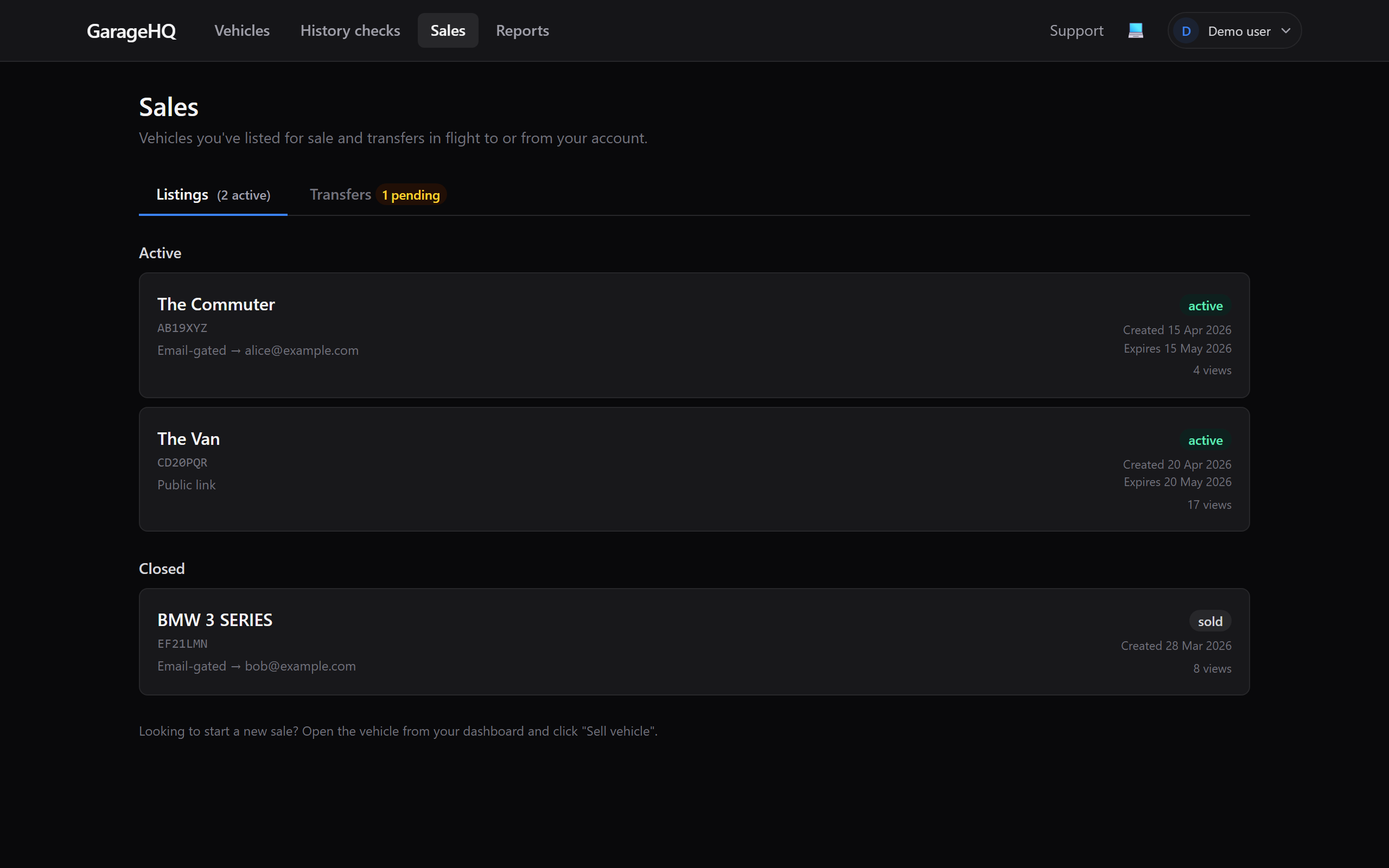
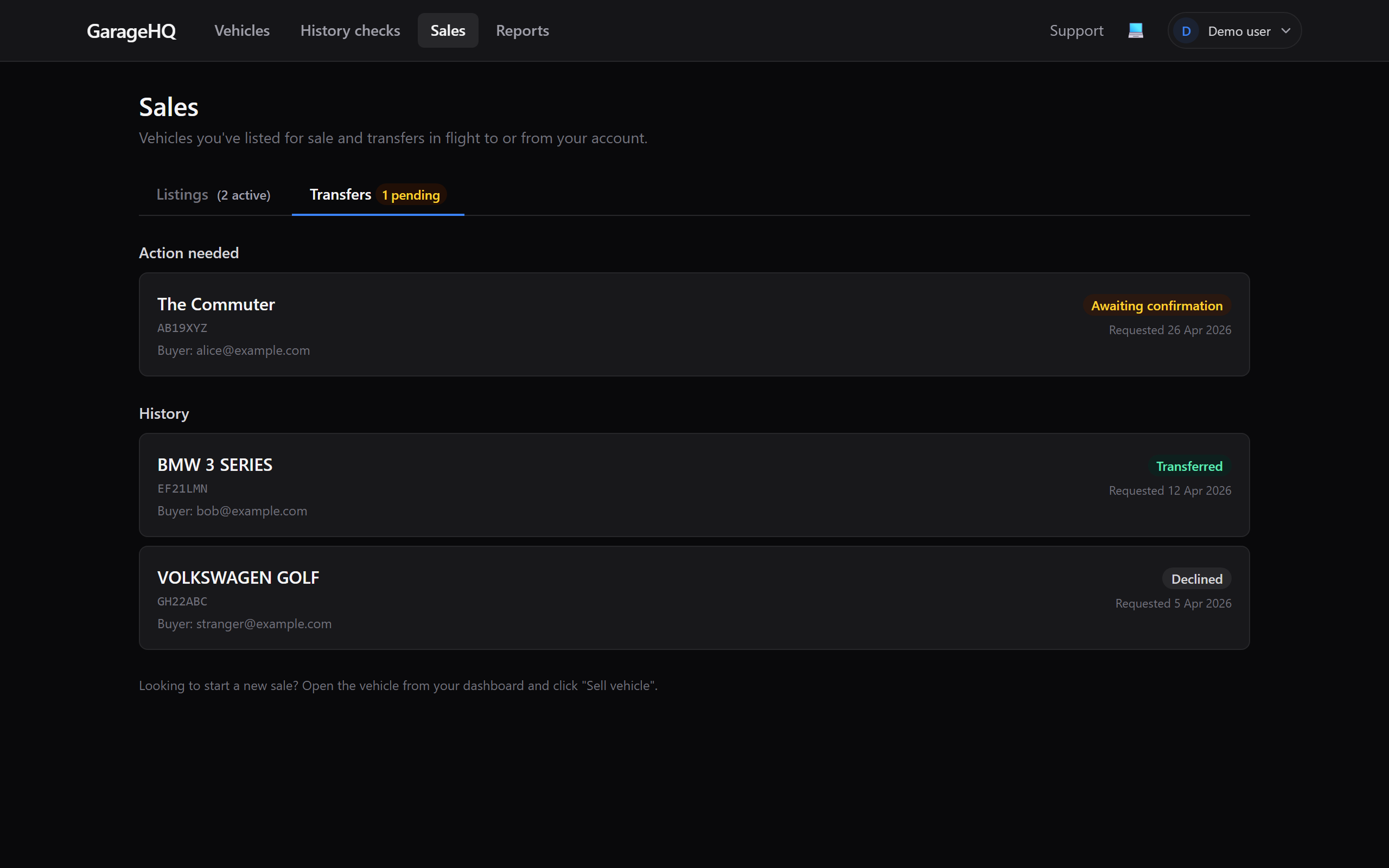
In the top nav, click Sales. The page splits into two tabs:
- Listings. Every seller pack you've generated, active or closed.
- Transfers. Every transfer you're involved in, as seller or buyer, all statuses.
A pending-count badge sits on the Transfers tab when something needs you to act.
Listing statuses
| Status | What it means |
|---|---|
| Active | Generated, link works, buyers can view. Default state. |
| Sold | A transfer against this listing was confirmed. The link still works for the buyer if they need to re-open it; new claim attempts are rejected. |
| Expired | The expiry date passed (default 30 days from generation). Listing read-only. To re-issue, generate a fresh seller pack from the vehicle's detail page. |
| Revoked | A GarageHQ admin invalidated the listing (rare, e.g. abuse report or the owner asked support). Same effect as expired but flagged in red on the dashboard. |
Click any listing card to open the pack as the seller would see it. Use the share controls there to copy the URL, email it, or print the QR-coded handover sheet.
Transfer statuses
| Status | What it means |
|---|---|
| Awaiting confirmation | Buyer clicked "Bought this vehicle"; seller hasn't acted yet. Shown to the seller as "action needed" and to the buyer as "waiting for seller". Auto-expires after 14 days of no action. |
| Transferred | Seller confirmed and chose what data to send. Vehicle is now in the buyer's account. This is the success state. |
| Declined | Seller hit "Decline" instead of "Confirm" (e.g. they don't recognise the buyer email). Buyer is told the request was declined; seller can re-engage with the same listing if they want. |
| Expired | Neither side actioned within 14 days. Listing remains active so the buyer can retry from a fresh click. |
| Cancelled | Buyer withdrew the request before the seller acted (the Cancel request button on the buyer's transfer page). |
| Reverted by admin | A GarageHQ admin reverted a previously-confirmed transfer. Vehicle returned to the seller; buyer's copy removed. Used for dispute resolution. |
Acting on a transfer (seller side)
Open a transfer with status Awaiting confirmation to see the full flow:
- A summary of the listing, the buyer's GarageHQ account email, and how it compares to the email you originally sent the link to.
- Tickboxes to pick what data to send (Photo / Mileage log / MOT history / Service history / Parts and bills).
- Confirm transfer to send the vehicle and selected data to the buyer.
- Decline if the request looks wrong (forwarded link, unrecognised buyer, suspected fraud).
If the buyer's email doesn't match the address you originally sent the link to, the page tells you. Real buyers often have multiple email addresses; if you recognise the person, confirm. If not, decline.
Acting on a transfer (buyer side)
Open a transfer with status Awaiting confirmation from your side and you'll see a "waiting for seller" state with a Cancel request button. Click it to withdraw before the seller acts. Useful if:
- You realise the seller's email gate flagged a mismatch and you want to retry with the right address.
- You changed your mind about the purchase.
- The seller's gone quiet and you'd rather not leave the request hanging.
Once the seller has confirmed, the transfer moves to Transferred and the cancel button disappears; at that point the vehicle is in your account and the only way to reverse is to ask GarageHQ admin (which they'll only do for genuine disputes).
Revoking your own listing
There's no self-serve revoke button on the customer app today. If a listing is wrong (you generated it for the wrong vehicle, picked the wrong recipient, or want to invalidate a public link you're done with), two options:
- Mark the vehicle as sold from the vehicle's detail page, Settings tab. Any active listing against the vehicle is closed automatically and the link returns the "no longer for sale" page. This is the right path if the sale happened off-platform (you sold to a dealer, or to a buyer who doesn't want to use GarageHQ).
- Email hello@garagehq.uk asking us to revoke a specific listing. We do this via the admin portal. Useful if you didn't actually sell but want to take the link out of circulation (e.g. sent to the wrong email).
Listings expire automatically 30 days after generation regardless. If the link going stale on a known schedule is good enough, just wait it out.
Marking a vehicle sold (off-platform)
If the sale happened outside GarageHQ (private sale to someone who doesn't want an account, or a trade-in to a dealer):
- Open the vehicle detail page.
- Switch to the Settings tab.
- Click Mark as sold at the bottom.
- A browser confirmation dialog appears, click OK.
Effects:
- The vehicle picks up a "Sold" banner on its detail page with the marked-sold date.
- Reminders for that vehicle stop firing.
- Any active listing against the vehicle is closed.
- Your service history record is preserved on your side; the vehicle stays visible in your dashboard with the "(sold)" tag.
Un-selling
If you marked a vehicle sold by accident, or the buyer backed out before payment, click Un-sell on the sold banner. This reopens the vehicle, reactivates reminders, and clears the sold-on date. Service history and other records are unaffected.
The Un-sell button only appears for manually-marked-sold vehicles; if the sold state came from a confirmed transfer, the Un-sell control is replaced with a link to the buyer's vehicle (your old vehicle's history is now in their account, so reverting needs admin involvement).
What next?
- Selling a vehicle for the seller-side flow that produces the listings + transfers visible on this page.
- Buying a vehicle for the buyer-side equivalent.
- Removing a vehicle if you want to delete a sold vehicle from your account entirely.