Buying a vehicle through GarageHQ
If a seller has built up vehicle records in GarageHQ (MOT history, service history, mileage log, photos, parts and bills), they can send you a buyer-facing pack with a single link. Clicking through gets you the records, and optionally claims the vehicle into your own GarageHQ account so the history travels with it.
This article is the buyer's side of the flow. The seller's side is at Selling a vehicle.
1. Open the link
The seller sends you a URL by email, message, or QR code. Two flavours:
- Specific-buyer link. The seller entered your email when they generated the pack. You'll be prompted to enter that email before the pack opens. Wrong email returns a "not found" page on purpose, so a forwarded link doesn't expose anything.
- Public link. No email gate. Anyone with the URL can read.
Either way, what you see is the seller's pack: photo, mileage, MOT history, plus whatever else they ticked (service history, parts and bills, cost-of-ownership summary, an attached vehicle history check).
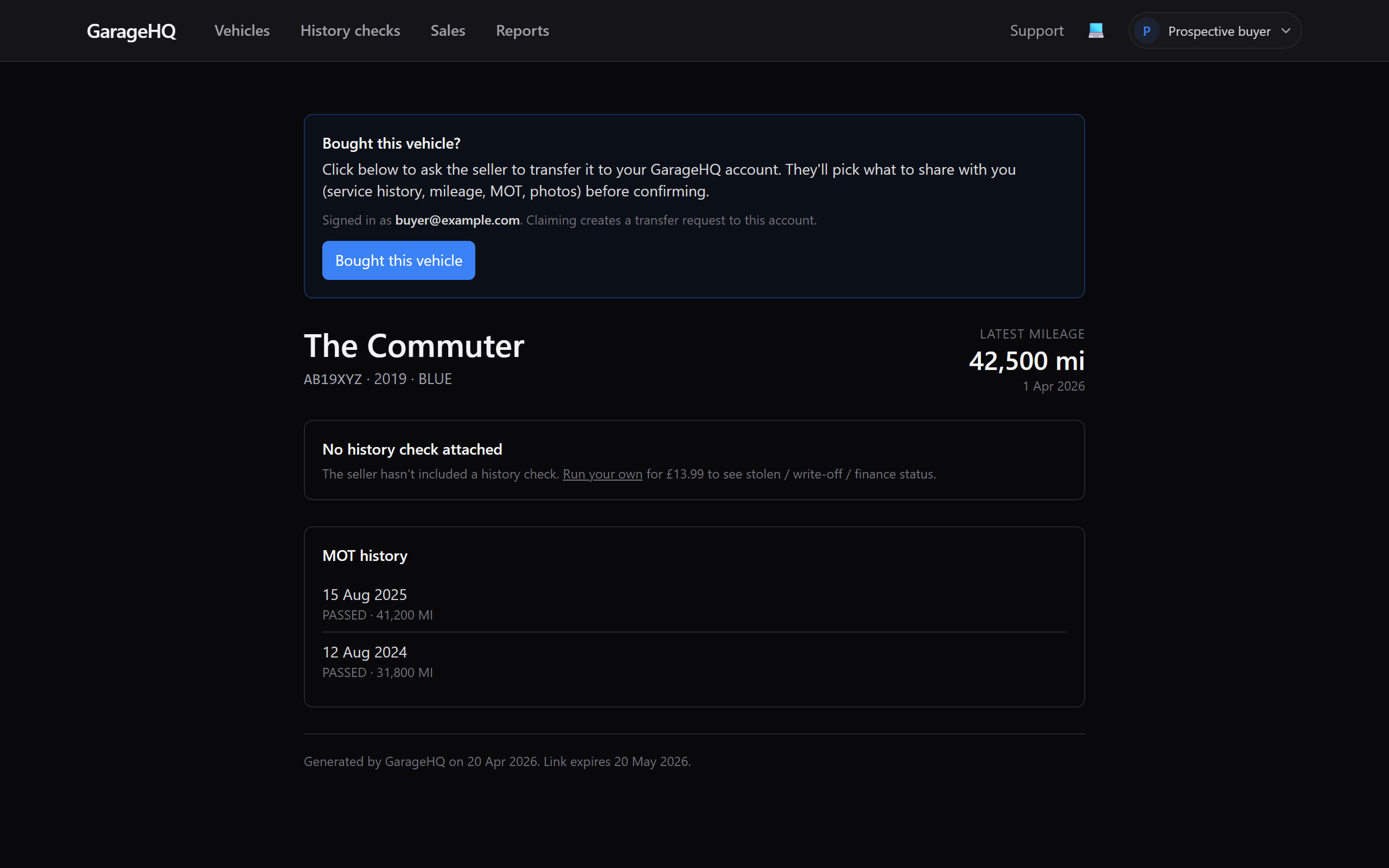
2. Click "Bought this vehicle"
When you're ready to claim, click Bought this vehicle at the top of the page. GarageHQ will:
- Prompt you to sign in or sign up if you're not already logged in. Sign-up takes about thirty seconds. Microsoft, Google, or email link.
- Send a transfer request to the seller, asking them to confirm the sale and pick what data to send across.
- Show you a "waiting for seller" status on your account until they confirm.
3. The seller confirms
The seller gets a banner on their dashboard plus an email (if they have notifications on). They open Sales → Transfers and see your request.
The seller picks what data to transfer:
- Photo
- Mileage log
- MOT history (DVSA-sourced)
- Service history (entries the seller logged)
- Parts and bills (the seller's expense ledger)
They click Confirm transfer. The vehicle and the selected data arrive in your account immediately. You can also see the request being declined or expiring; if so, ask the seller to re-issue from their end.
4. What lands in your account
After the seller confirms, the vehicle appears on your Vehicles dashboard. Open it and you'll see:
- Vehicle basics in the heading and status row, the same fields the seller had.
- MOT history if the seller ticked it. This is the DVSA's record so you'd have got it eventually anyway, but having it here from day one means the timeline is populated immediately rather than after the next MOT cache refresh.
- Mileage log if the seller ticked it. Pre-populated with every reading they recorded plus MOT-derived mileages.
- Service history if the seller ticked it. Each entry is marked as inherited from the previous owner so you can tell what's pre-purchase versus what you've added.
- Parts and bills if the seller ticked it. Same inheritance marker.
Reminders for MOT, tax, and insurance start firing as soon as the vehicle is in your account, using the same alert windows you'd get on any vehicle you'd added manually.
What's missing on the buyer side
Some things deliberately do not transfer:
- Appointments. The seller's bookings with their garages don't carry over. You book your own.
- Garage and insurer assignments. The seller's saved garage and insurance provider don't link to your vehicle. Pick from your own garages and insurers when you next edit.
- Notification preferences. Per-vehicle reminder toggles are user-scoped. Your defaults apply.
- Notes. The seller's free-text notes don't transfer. They're often personal context the buyer doesn't need.
This is by design. The thing you're buying is the vehicle's history; the workflow context (where the seller serviced it, who insured it for them) is theirs to keep.
Service history and parts/bills require Garage tier or above
Personal-tier accounts can claim a vehicle and inherit the basics (photo, mileage, MOT). Service history and parts-and-bills only transfer if the buyer is on Garage or Garage+. If the seller offered them and you're on Personal, you'll see an upgrade nudge in the post-confirm email.
This isn't a paywall on the records you bought; it's a reflection of which tiers expose those features at all. Personal accounts don't have a service-history surface, so there's nowhere for the data to land.
What if the transfer doesn't arrive
A few things to check, in order:
- The seller might still be reviewing. They have until the listing's expiry to confirm. By default that's 30 days from generation; you can ask the seller to renew if it's about to lapse.
- The seller might have declined. They get a tickbox in the confirm dialog for "I don't recognise this buyer." If they hit that, your request is rejected and you'll see a "Declined" status in Sales → Transfers on your side.
- The seller might have reverted the transfer post-confirm. Rare, but if there's been a dispute the seller can ask GarageHQ admin to revert. The vehicle is removed from your account and the seller gets it back.
- The transfer might have expired. If neither of you actioned it within 14 days of your Bought this vehicle click, the request lapses. Ask the seller for a fresh link.
If nothing's arrived after a week and the seller insists they confirmed, email support with the share token from the original URL.
What next?
- Managing listings and transfers to navigate the /sales surface where transfers live.
- Selling a vehicle when you eventually pass it on yourself.
- Running a history check if the seller didn't include one and you want independent provenance.