Switching between organisations
GarageHQ scopes most of your data to a single organisation: vehicles, garages, insurers, history checks, appointments, alert windows. If you belong to more than one organisation, you can switch between them at any time from the user menu, no need to sign out and back in.
1. Open the user menu
Click the identity pill in the top-right of any page (your initial + display name + chevron). On mobile, tap the hamburger icon.
2. Find the Organisations section
If you belong to multiple orgs, the dropdown shows an Organisations block listing each one. Your current org is marked with the brand-coloured icon and a small "Current" tag on the right.
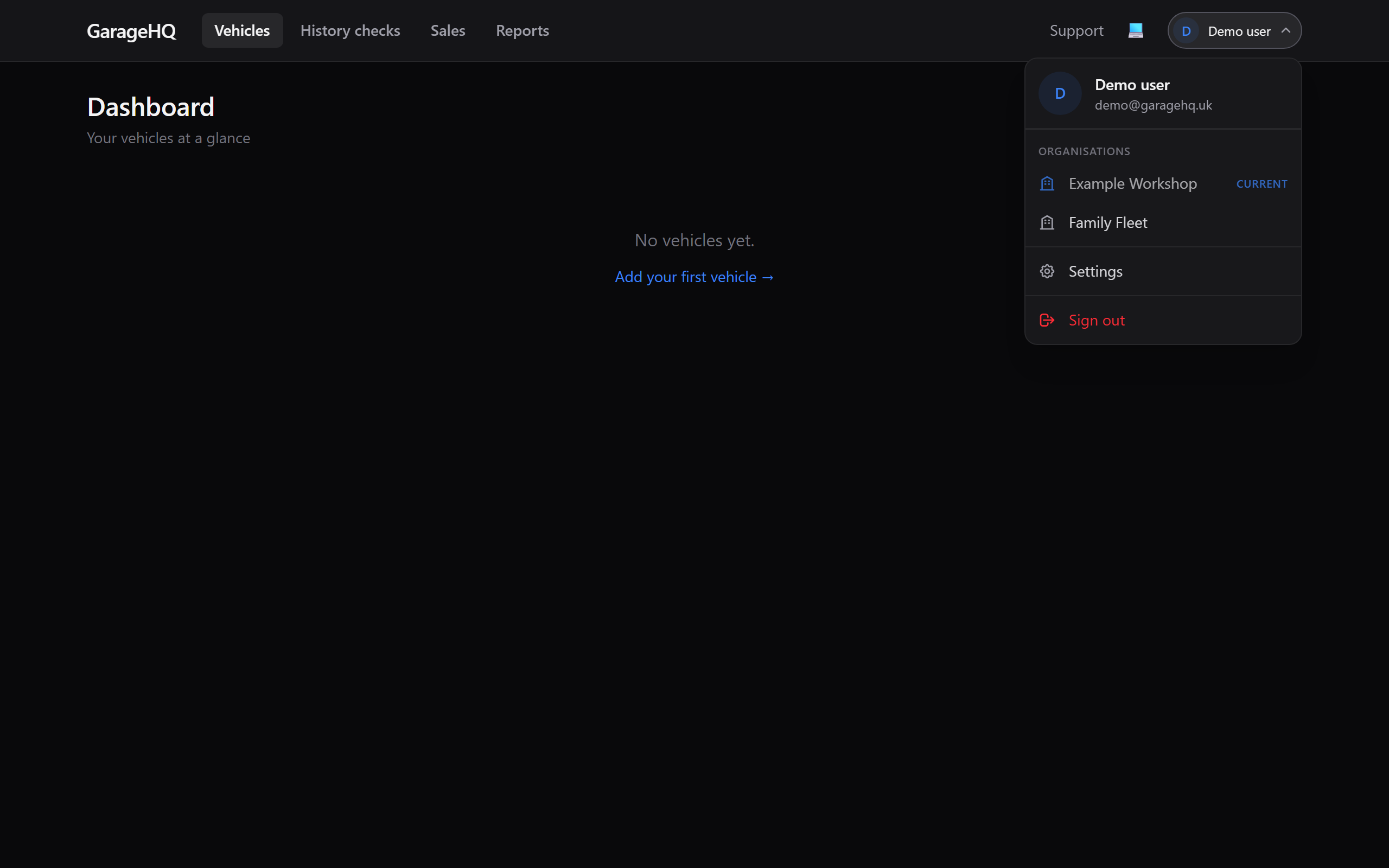
3. Click the org you want to switch to
GarageHQ records the new org as your default and reloads the page. After the reload:
- Every page (Vehicles, Garages, Insurers, History checks, Reporting, Compliance) shows data from the new org only.
- Your role inside the new org may be different. Owner here, member there, or anything in between.
- Your account-level settings (display name, sign-in security, alert-window override) carry across. They're tied to your user, not to any one org.
What carries between orgs vs what doesn't
| Stays with you | Belongs to the org |
|---|---|
| Display name, email, sign-in providers | Vehicles, photos, service history, mileage |
| Alert-window override (your personal default) | Garages list (shared by everyone in that org) |
| Sign-in audit + provider lock | Insurers list (shared by everyone in that org) |
| Notification preferences (per vehicle, you set) | History checks you've run for that org's vehicles |
| Subscription billing? No, that's per org. | Org-wide alert window default + reporting access |
Why your default org matters
Switching changes your default org. Next time you sign in, GarageHQ takes you straight to that org. If you find yourself switching back and forth daily, set whichever you use most as your default by clicking it last.
The default also drives which org's data appears when you arrive via a deep link (e.g. an alert email or a calendar invite). The link will resolve to whichever org owns that record, but you'll still need to be a member of it to see anything.
What if I only have one org but want a second?
Two ways to end up in a second org:
- Get invited. An owner or admin of another GarageHQ org adds your email to their team. You'll get an invite email and the new org appears in your switcher next time you sign in. See Inviting team members for the inviter's side.
- Create one. Visit Settings and look for the option to create a new organisation. Useful if you want a clean separation between, say, your personal vehicles and a fleet you manage for someone else.
What next?
- Inviting team members, add others to your current org.
- Setting up your organisation, name and configure a fresh org.
- Notification reminders, set the alert windows once per org for everyone to inherit.