Locking your account
You can lock your GarageHQ account to a single sign-in method (Microsoft, Google, or Cloudflare Access SSO). Once locked, sign-in attempts via any other method are refused before a session is even issued. This article explains when to use it, how to do it, and how to recover access if you lock yourself out.
When to lock
Lock your account when:
- You only ever sign in via one method, and want to make sure that's enforced.
- You've received a "New sign-in to GarageHQ via X" email and the sign-in wasn't you.
- Your email account has been compromised, you've changed your email password, and you want to be certain a future intruder can't sign in here too.
- Your organisation has a single-sign-in policy and you want to enforce it on this account specifically.
If none of those apply, you don't need to lock. The default behaviour (any verified provider can sign in to your account) is fine for most users.
How it works
Your GarageHQ account is identified by your email address. Whichever method you sign in with, GarageHQ checks that the OAuth provider has cryptographically verified that you control the email. So a "different sign-in method" only succeeds if someone else has access to a valid OAuth account on that provider with your email on file. Most realistically that means someone has access to your email inbox.
When you lock the account:
- GarageHQ stores the provider you've locked to (e.g.
Microsoft). - On every subsequent sign-in attempt, GarageHQ asks: "did this attempt come through Microsoft?"
- If yes, the sign-in proceeds normally.
- If no, the sign-in is refused before any session is issued. The user is bounced back to the login page with a "Sign-in not allowed for this account" message. No data is exposed.
Locking signs you out everywhere. The moment you set or change a lock, every existing session for your account is revoked. You'll get redirected to the login page on your next click; sign in via the (now locked) provider and you're back in. Anyone else who held a session for your account at the moment of the lock, including a potential attacker, is signed out at the same time. Unlocking does not have this effect; existing sessions keep working through an unlock.
How to lock your account
From settings
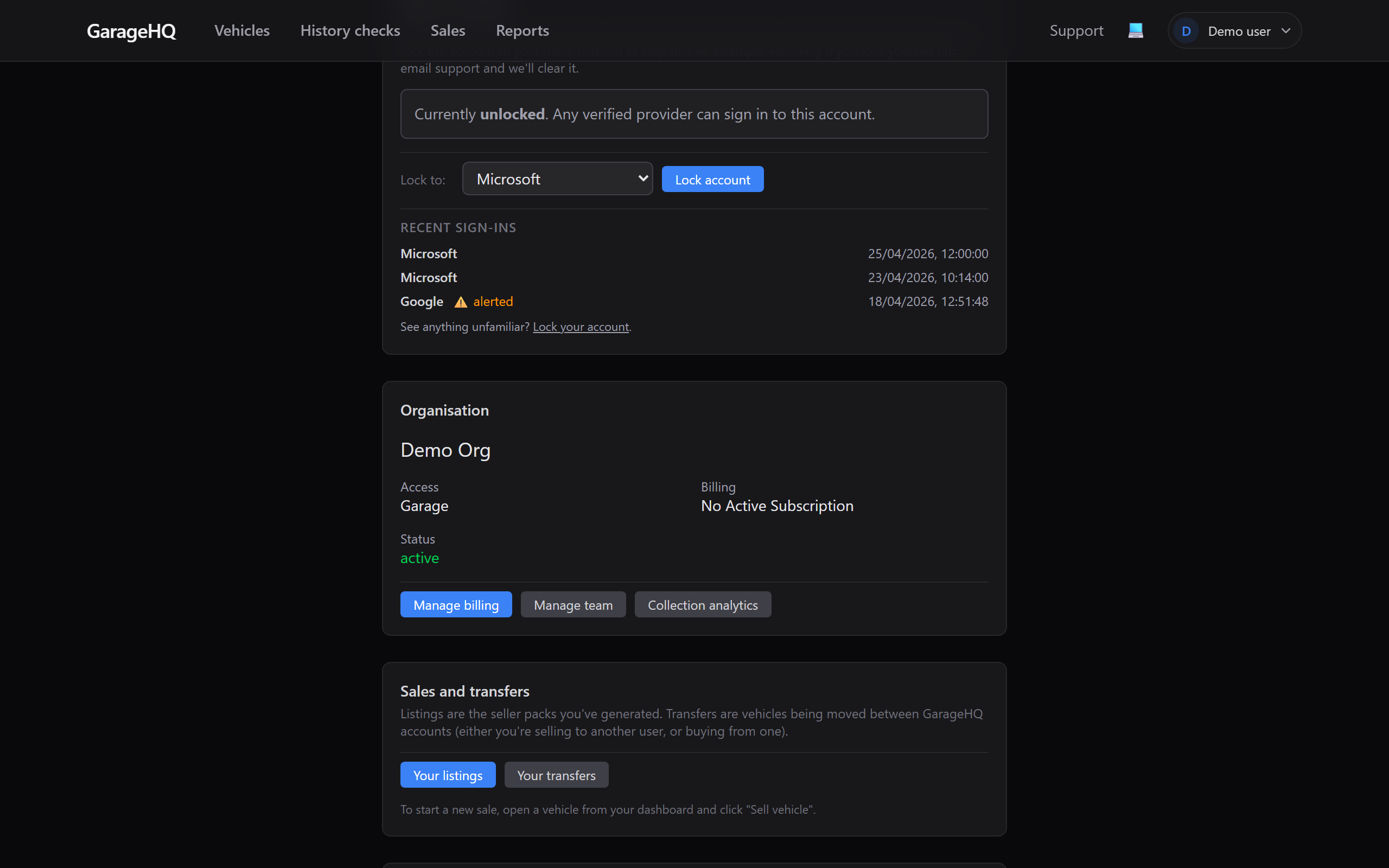
- Sign in to GarageHQ at https://app.garagehq.uk.
- From the top nav click Settings, then open Account.
- Scroll to the Sign-in security card.
- Pick the method you actually use from the dropdown.
- Click Lock account.
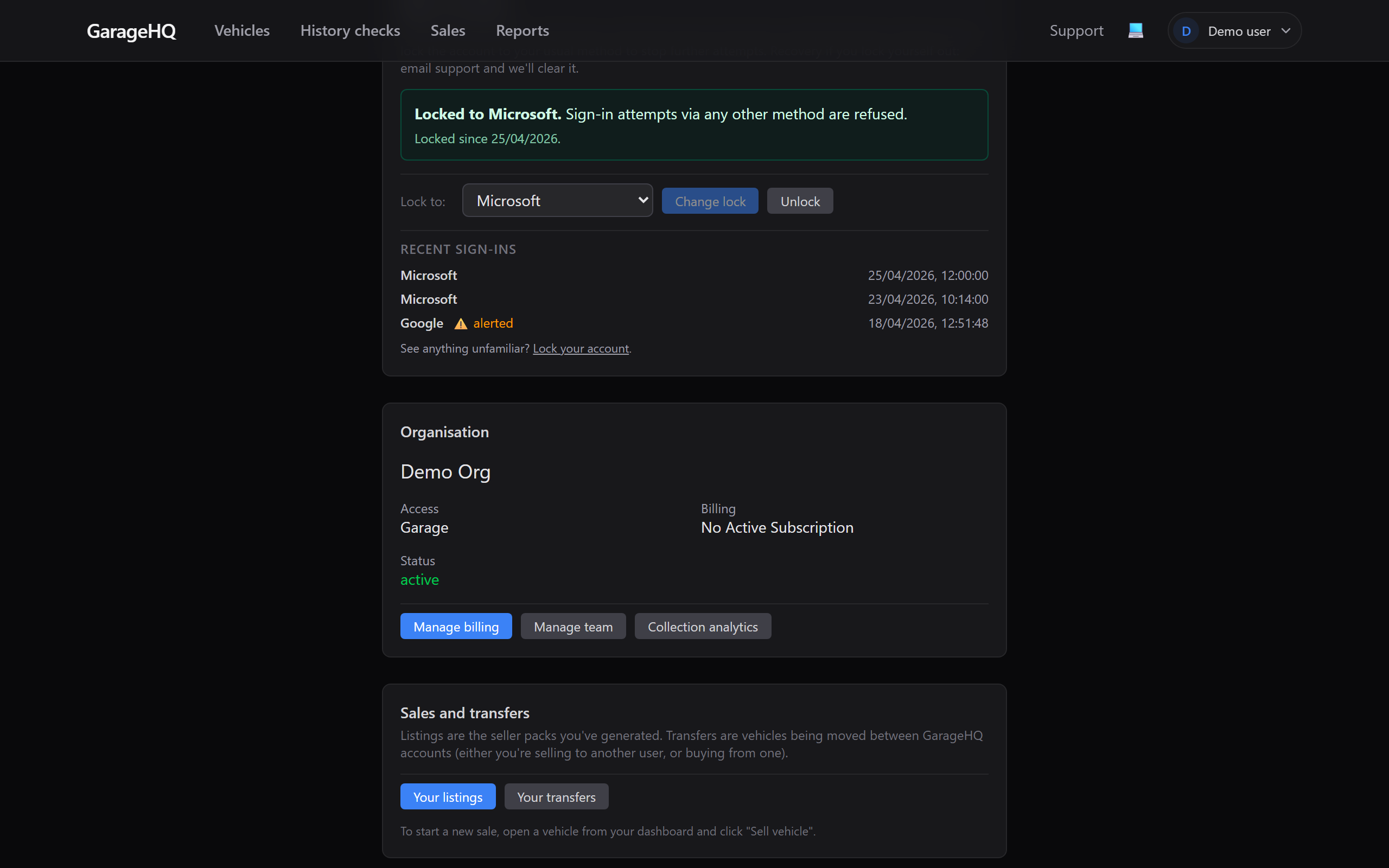
You'll see a green confirmation: "Locked to Microsoft. Sign-in attempts via any other method are refused."
From the new-sign-in alert email
Every time you sign in via a method you haven't used before, GarageHQ emails you a heads-up. The email has a red "Lock my account" button that takes you straight to the Sign-in security card with the right method pre-selected. One click.
How to change which method you're locked to
Same Sign-in security card. Pick a different method from the dropdown and click Change lock. The previous lock is replaced atomically; there's no moment where the account is unprotected.
How to unlock your account
If you've decided you no longer need the lock (e.g. you're going to start using a second method legitimately), unlock from the same card:
- Settings → Account → Sign-in security card.
- Click Unlock.
You're back to the default behaviour: any verified provider can sign in.
What happens if I lock myself out?
If you locked your account to Microsoft and then lose access to your Microsoft account (account compromise, lost phone with authenticator app, employer revoked your tenant access, etc.) you won't be able to sign in to GarageHQ either. Don't panic.
Recovery path:
- Email support@garagehq.uk from any address.
- Tell us:
- The email address on the locked account.
- The provider it's locked to.
- Which provider you'd like to sign in via instead.
- Enough context that we can reasonably believe you are who you say you are. Examples: a recent Stripe invoice number, the registration of a vehicle on your account, the date you signed up, a personal detail you'd previously shared with us.
- We verify, then clear the lock from our end. Usually within a few working hours, always within one working day.
- You sign in via the alternate method.
- Re-lock to whichever provider you actually want to use going forward.
The recovery path is deliberately not self-serve. If it were, an attacker who could prove they own the email could simply un-set the lock and sign in. The point of the lock is to stop that scenario, so the unlock has to involve a human verification step.
What the lock does NOT do
- It does not change your email address. Your account is still identified by the same email; only the sign-in method is restricted.
- It does not enable two-factor authentication. The OAuth providers (Microsoft, Google) handle 2FA themselves; we recommend enabling it at the provider level for the strongest protection.
- It does not affect API tokens or other access methods that aren't OAuth sign-ins.
- It does not retroactively kill OAuth-provider sessions. We sign out every GarageHQ session at the moment of the lock, but the underlying Microsoft / Google session may still be active on the attacker's device. Sign out from any sessions you don't recognise via your provider's "active sessions" page (Microsoft: account.microsoft.com → Sign-in activity; Google: myaccount.google.com → Security → Your devices).
Frequently asked
Should I lock my account by default? Up to you. Most users don't, and the new-sign-in alert email is enough warning. Lock if you've had a scare or want a defence-in-depth layer.
Can I lock my account to two methods? Not yet. The lock targets a single provider. If you genuinely use more than one method and want both allowed, leave the account unlocked and rely on the alert email to catch unexpected sign-ins.
Will I get logged out when I lock? No. The lock affects future sign-ins only.
What if I lock to a provider I've never used? The lock won't take effect until you actually sign in via that provider, but other providers will be blocked from that point on. So if you accidentally lock to a method you don't have access to, you've effectively locked yourself out. Email support and we'll clear it.
What about admins or team members on my org? The lock is per-user, not per-org. Each member of your organisation manages their own lock independently from their own settings page.