Compliance dashboard
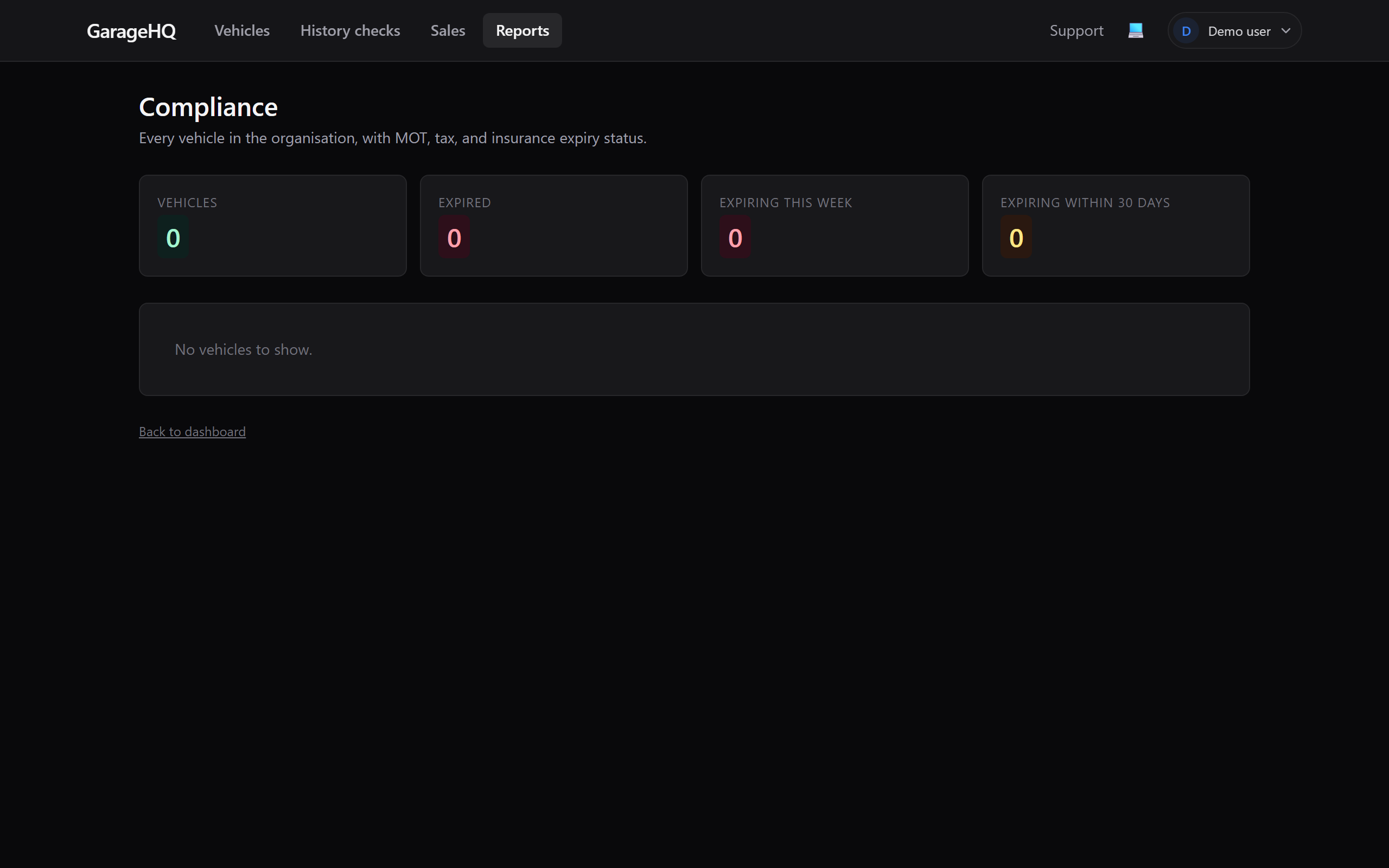
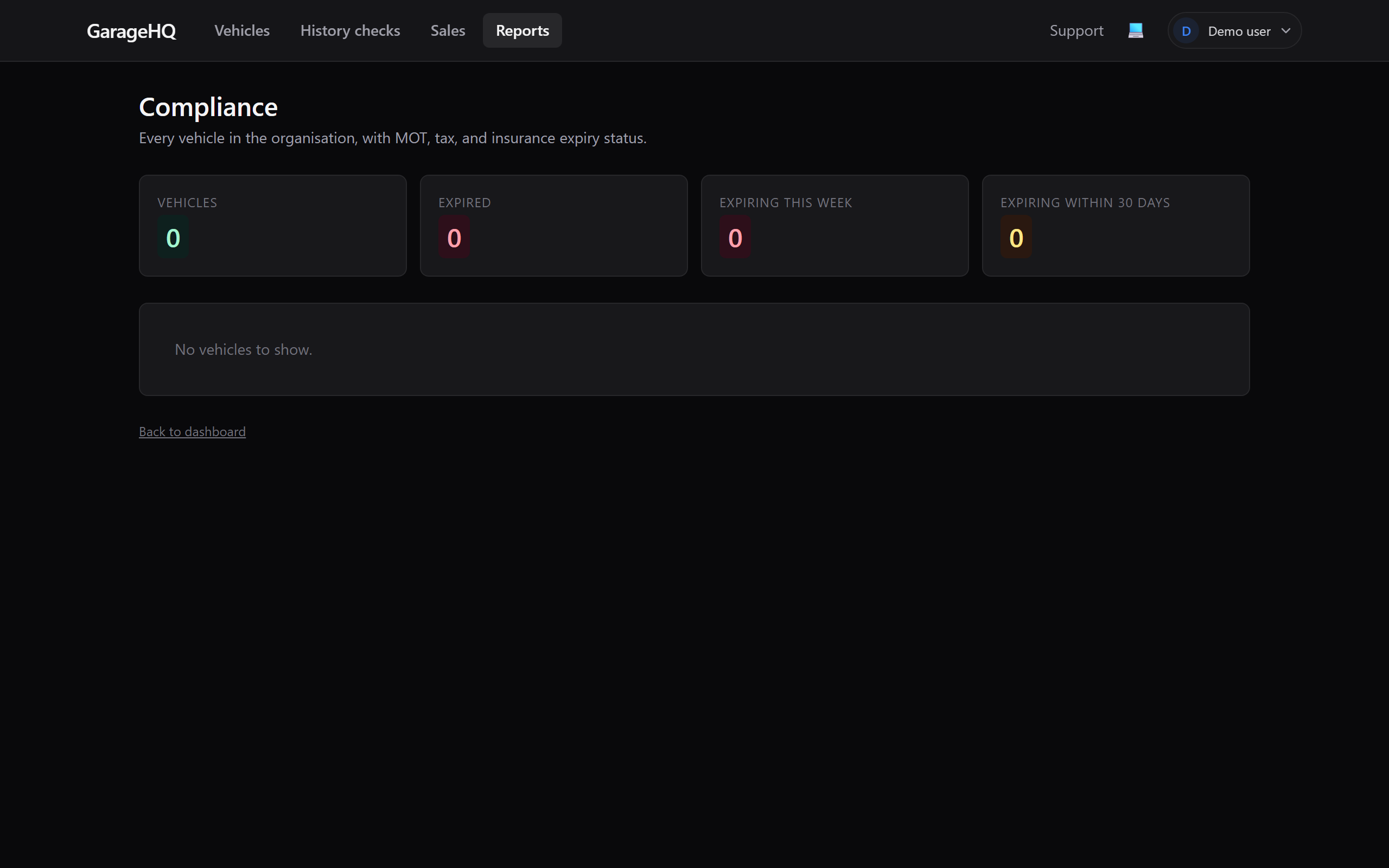
The compliance dashboard is a one-page view of every vehicle in your organisation against the three legally-required dates: MOT, tax, and insurance. Built for fleet operators who need to know at any moment whether a vehicle is roadworthy, expired, or about to slip.
Where to find it
From the top nav click Reports, then open Compliance dashboard. Or the direct link /settings/compliance.
What it shows
The dashboard is a single table, one row per vehicle in your org. Each row has these columns:
| Column | Meaning |
|---|---|
| Vehicle | Reg + nickname (or make/model if no nickname) |
| Owner | Which org member owns this vehicle |
| MOT | Days until expiry, with a colour-coded chip |
| Tax | Same |
| Insurance | Same |
| Last service | Days since the most recent service-history entry (if any) |
| Mileage | Most recent reading + how recent |
Each chip is colour-coded:
| Colour | Meaning |
|---|---|
| Green | Fine, more than 30 days remaining |
| Amber | Expiring within 30 days |
| Red | Expired or missing |
| Grey | No data on file (e.g. insurance dates not entered) |
Filtering and sorting
- Click any column header to sort by it. The default sort is "most urgent first": red rows top, then amber, then green.
- A search box at the top filters by reg, nickname, owner email, or owner name.
- A category filter lets you show only "expiring this month" or "expired" vehicles for a quick clean-up pass.
Acting on a row
Click any vehicle row to jump to its detail page. From there you can:
- Update MOT / tax / insurance dates directly.
- Book an appointment with a garage to deal with an expiring MOT.
- Reassign ownership if the right person to fix it is someone else.
What "missing data" means
A grey insurance chip can mean either:
- You haven't entered the insurance expiry date for this vehicle yet. Open the vehicle and edit it.
- The vehicle isn't insured by you because it's been removed from the road (SORN). If so, edit the vehicle and untick the Notify insurance checkbox so it stops showing as missing.
Same logic applies to missing MOT or tax dates.
CSV export
The dashboard supports CSV export of whatever's currently visible (after filters). Click Export CSV in the top right. Useful for:
- Sending to your accountant before an audit.
- Sharing with an external fleet manager.
- Producing a pre-deal compliance pack when selling a fleet.
The CSV includes every column from the table plus the underlying expiry dates (not just the days-remaining chip).
What it doesn't show
A few things deliberately out of scope:
- Service intervals. This dashboard is for legal compliance, not maintenance schedules. Use the per-vehicle Preferences card for service due dates.
- Driver licences / CPC for company cars. Driver-side compliance isn't a vehicle concern. Outside the scope of GarageHQ.
- Operator licences (O-Licence). HGV/PSV operators have separate compliance regimes that GarageHQ doesn't model. If you need them, talk to us. We may build them as a Garage+ Pro feature.
What next?
- Org-wide reporting, financial and trend reporting alongside this compliance view.
- Notification reminders, get warned by email before things drift into amber.
- Member roles explained, who can see the compliance dashboard.