Removing a vehicle
Sometimes a vehicle no longer belongs in your account: you sold it, scrapped it, or added the wrong reg. Deleting one is a single click but it's permanent. This article covers what disappears, what stays, and the safer alternatives.
How to delete
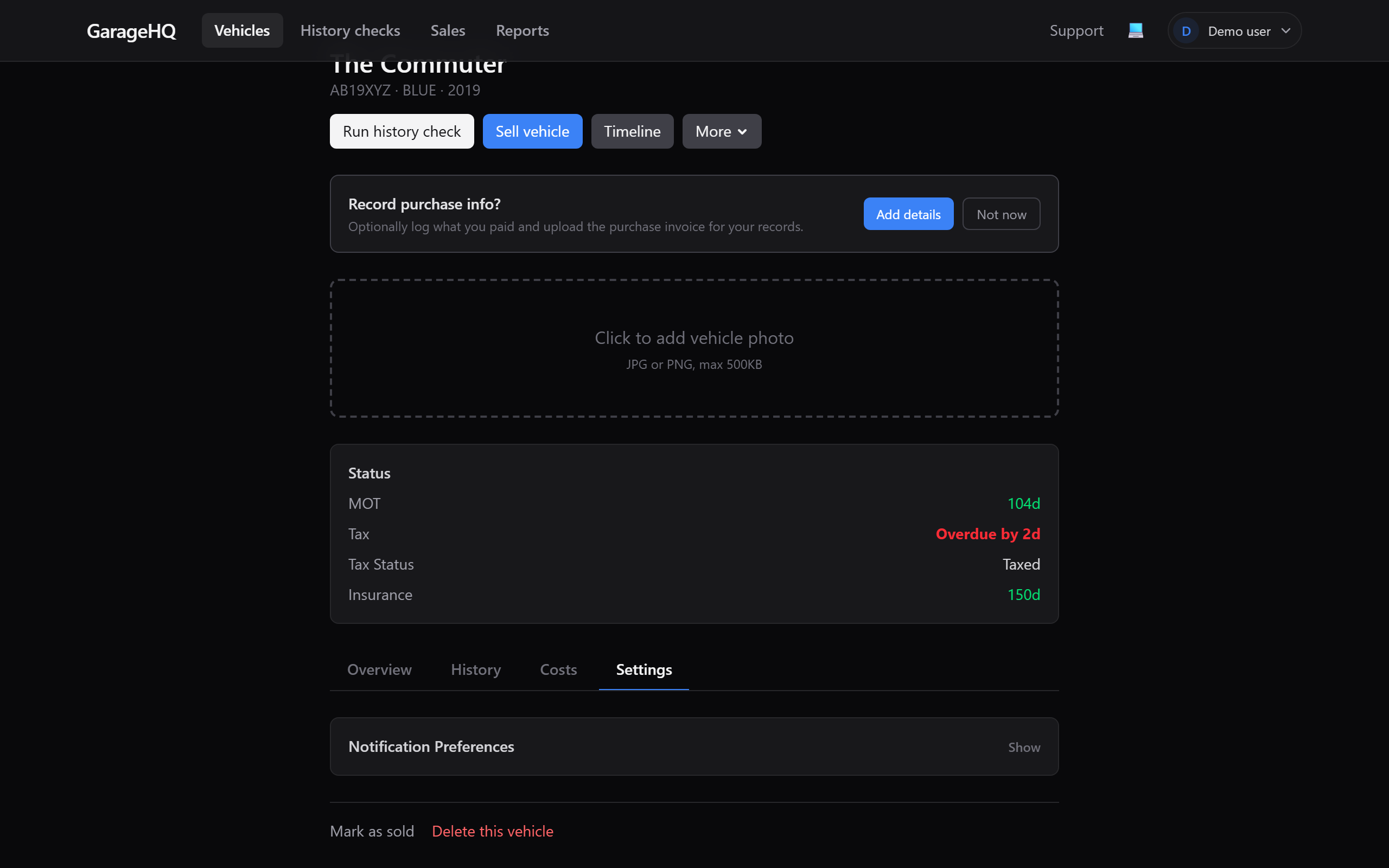
- Open the vehicle's detail page.
- Switch to the Settings tab.
- Click Delete this vehicle at the bottom of the page.
- Your browser asks "Delete this vehicle? This cannot be undone." Click OK to confirm.
You'll be redirected to your vehicles list, with a quick "Vehicle deleted" toast.
What gets cascaded
Removed at the same time as the vehicle:
- Service history entries: every service / maintenance log against this vehicle.
- Mileage log: every reading you've added (MOT mileages disappear with the cache, manual readings disappear with the records).
- Appointments: past and future bookings tied to this vehicle.
- Notification preferences: the per-vehicle on/off switches for MOT/tax/insurance/service reminders.
- MOT cache: our local copy of the DVSA history. The DVSA's record is unaffected and you can re-fetch by re-adding the vehicle.
- Cover photo: the JPG/PNG you uploaded.
- Reminder log: entries that prevented duplicate alerts. New emails won't fire because the vehicle is gone.
What stays
Stays untouched after the delete:
- Garages and insurers: these are org-level records. Deleting one vehicle doesn't remove the workshop or insurer it pointed at.
- Other vehicles: only the one you delete is touched.
- Org members: the user(s) who owned this vehicle keep their account and any other vehicles assigned to them.
- History check reports for this vehicle: kept for audit and compliance purposes (you paid for them and may need the PDF later). The link to the vehicle is dropped, but the report itself remains in your history-checks list.
Safer alternatives to deleting
Before you delete, ask whether one of these is what you actually want:
- You sold the vehicle. Consider keeping it on the account read-only: the service history might be useful evidence for the new owner or for warranty disputes. There's no "archive" toggle today, but you can simply disable notifications on it (vehicle preferences card → toggle each off).
- You added the wrong reg. Edit the reg field on the vehicle's detail page rather than deleting and re-adding. The DVLA cache will refresh on next save.
- You're cleaning up duplicates. Consider exporting a CSV of the duplicate's service history first via data export, so you don't lose anything if you change your mind.
- You're moving the vehicle to another organisation. Use the reassign flow inside the same org, or contact us if you need it moved between orgs.
What if I deleted by accident?
We don't have a self-serve undo. If you've just deleted something you didn't mean to, email support immediately (within minutes is best). We may be able to restore from a recent backup if you act fast. Don't sit on it for days.
What next?
- Editing a vehicle, change the reg, nickname, or assigned garage instead of deleting.
- Reassigning vehicles between members, move ownership without losing history.
- Data export and account deletion, export your data before destructive operations.